How To Use Hardware Synths with Ableton Live (EASIEST Method)
6 chapters
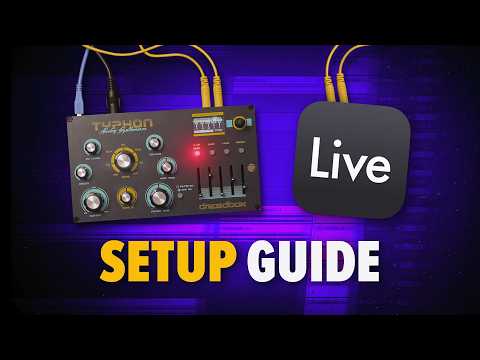
- Hardware Setup and ConnectionEquipment OverviewThe tutorial uses two synthesizers: Peak (connected via USB cable for MIDI) and Typhon (connected via mono audio cables to the interface).Connection Methods• Peak: USB cable for MIDI send and receive, two mono audio cables into interface • Typhon: USB cable to power from phone charger, MIDI cable into interface MIDI out to avoid ground loop noiseInitial SetupPower on the synthesizers and connect all cables before configuring software settings in Ableton Live.Audio Quality TipMatching the color of audio cables improves sound quality.
- MIDI Configuration in Ableton LiveMIDI Input/OutputIn Live MIDI settings, select which MIDI ports to send and receive from your hardware synths.Sync Settings• Enable sync checkbox for output ports only to synchronize LFOs and effects with the DAW • Set remote option for controllers and advanced functionalityPer-Synth ConfigurationPeak and Typhon may require different MIDI settings depending on their capabilities and interface connectivity.Interface OrganizationRename stereo or mono inputs in Ableton's input configuration for easier identification of your synths.
- Using External Instrument DeviceDevice SetupDrag the External Instrument device onto an empty MIDI track and configure the MIDI output port and audio input from your interface.Playing and Recording• Use a keyboard controller (such as Ableton Push) to play the hardware synths via MIDI • Record MIDI performances directly to the trackCreating Audio FilesExternal Instrument generates audio recordings from your hardware synths for further production work.Preset ManagementSave External Instrument configurations as presets and rename them for different synths for quick access.
- Latency Compensation and RecordingLatency IssuesBuffer size and system specifications affect latency when recording hardware synths in real-time.Latency Solution• Use the External Instrument MIDI device settings instead of creating a new audio track • The device automatically compensates for latency during recordingRecording ProcessSwitch monitoring to off on the audio track to avoid hearing the signal twice, then press record.TroubleshootingIf tracks remain noticeably offset after recording, additional resources are available for further latency adjustment.
- Advanced Workflow and ShortcutsTrack Preset AutomationKeyboard Maestro (Mac app) creates custom macros to automatically generate MIDI and audio tracks, rename them, and apply saved External Instrument presets.Quick Setup Process• Pressing custom keyboard shortcut automatically creates new MIDI and audio tracks with correct names and presets applied • Autotrack Colors Max for Live device automatically colors tracksSaving TimeCustom shortcuts eliminate repetitive setup steps when working with multiple hardware synths.Workflow NotesTrack presets had compatibility issues after Ableton Live 12.2 update, prompting the development of alternative automation methods.
- Creating Patches on Typhon SynthSynth OverviewTyphon is a two-oscillator synth with a unique approach: one knob controls oscillator morphing between different waveform combinations.Waveform Options• Two saw waves • Square and saw combination • Square and triangle combinationEffects IntegrationCloud granular delay syncs to project BPM, allowing time-synchronized effect adjustments for creative sound design.Overall ValueTyphon offers strong sound quality and functionality as a budget synthesizer, making it a good value for its price point.