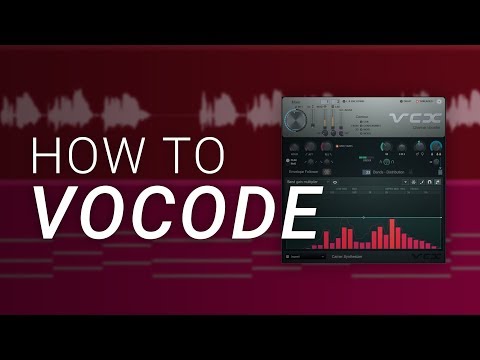
How To Vocode in FL Studio - Vocodex Tutorial
7 chapitres
- Introduction to Vocoding and Its ApplicationsWhat is VocodingVocoding is a versatile effect that can be used in extreme ways like 1980s Phil Collins production or in modern subtle ways like Zedd's production techniques.Practical Uses• Create extreme robotic vocal effects • Use as a thickening technique to make vocals sound wider and richer • Blend with main vocals for enhanced presenceBefore and AfterThe vocal transforms from a natural sound to a vocoded version, demonstrating both extreme and subtle applications of the effect.Essential Components• A vocal track on the mixer • A synth to determine harmonization • A mixer channel with the Vocodex plugin
- Setting Up the Vocoder: Routing and ConfigurationVocal SetupThe vocal is sent to a mixer track and must be routed to an input channel, not directly to the master.Synth Selection• Place the synth on the next mixer track after the vocal • Use Serum or any synth with a buzzy sound like a saw wave or square wave • Program the synth with the song's chord progressionPlugin PlacementLoad Vocodex from the miscellaneous plugins section on the third mixer track.Modulator and Carrier• The vocal acts as the modulator (controls the shape) • The synth acts as the carrier (provides the harmonization)
- Configuring Modulator and Carrier InputsSidechain SetupTurn down each track's input to the master and then right-click and select sidechain to the vocoder track.Selection Process• Use the mouth icon for modulator (vocal) • Use the keys icon for carrier (synth) • Scroll within the plugin to select the correct inputsVisual AidRight-click to see mixer channel names, eliminating any confusion during selection.ResultOnce properly configured and all tracks are enabled, the vocoder produces the characteristic effect.
- Essential Controls: Optimizing the SoundWet LevelAdjust the overall level of the vocoded effect to blend it properly with other elements.Order Control• Lower order makes it sound more like a synth • Higher order makes it sound more like the original vocal • Range from buzzy robot to realistic human voiceBand Distribution• Lower bands create a more synthetic sound • Higher bands create a more human-like voice • Default starting point is around 15-16 bands with order of 2Frequency Response• High pass and low pass controls let you pass vocal or synth signal through • Adjust for desired presence and clarity
- Advanced Parameters: Attack, Release, and BandwidthAttack and ReleaseIncreasing attack and release times gives a metallic feeling and smooths out the signal significantly.Bandwidth ControlAdjust to make things sound resonant and sharp or buzzy and smooth, creating dramatic differences in tone.Combined EffectTogether, order, band distribution, attack and release, and bandwidth provide most of the control needed.Learning More• Press F1 with the plugin open to access the detailed manual • Explore additional parameters like noise to improve speech intelligibility • Experiment to find your preferred sound
- Synth Design and Its Impact on VocodingSynth Characteristics MatterThe synth patch makes a massive difference to the vocoder output quality and character.Sound Shaping• Filtering reduces high-end frequencies in the vocoding signal • Adding oscillators and frequency modulation dramatically changes the source sound • Different synth settings create vastly different vocoded resultsExperimentationTry various synth settings and effects to discover unique vocoded sounds.ProcessingOnce the vocoder is set up, additional effects like EQ, reverb, and delay can be added for further enhancement.
- MIDI Notes, Harmonies, and Creative PossibilitiesNote Input ClarificationThe MIDI notes you input don't dictate the exact notes the vocoder produces; the actual audio output from the synth does.Harmony Variations• Use full chords for traditional harmonization • Create different harmonies using various scale notes • Use single notes instead of chords for different effectsVocal IndependenceThe original vocal doesn't have to follow the same chord progression as the synth; the vocoder will still harmonize them together.Creative Freedom• Pitch the synth up and down independently from MIDI notes • Explore limitless possibilities with different melodic and harmonic combinations • Combine vocoder with reverb and delay for unique atmospheric effects