How To Tune Vocals in FL Studio - Newtone Tutorial
8 chapitres
- Introduction to Newtone PluginPlugin OverviewNewtone is a pitch correction plugin that comes with FL Studio Signature Edition, functioning similarly to Melodyne for adjusting time and pitch of vocal notes.Key Capabilities• Adjust timing and pitch of notes to perfect vocal performances • Control vibrato characteristics • Modify transition times between notes • Change words to different pitches or notes entirelyTutorial StructureThe tutorial uses two examples with a vocal from David autostart, demonstrating how to confidently tune vocals and create harmonies using Newtone.Artist CreditThanks to David autostart for providing the vocal sample and encouraging questions from viewers in the comments.
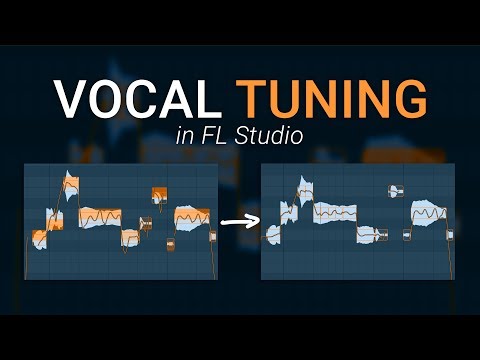
- Loading and Understanding the InterfaceLoading Audio• Load Newtone on any mixer insert in FL Studio Signature Edition • Drag a WAV file directly into the plugin • Quick method: right-click audio file and select 'Edit in pitch corrector'Display BreakdownThe interface shows each note or word broken apart into respective pitches, with a keyboard on the left side indicating which notes are being sung.Navigation Tools• Hold Alt and scroll for more vertical resolution • Hold Ctrl and scroll to zoom in • Resize window by dragging from bottom right or pressing Enter in top barBasic FunctionalityYou can drag notes to any pitch to change the melody, with snapping to scale available as an option in the top menu.
- Global Pitch Correction ControlsOrange Trace FunctionThe orange trace represents the exact pitch at any moment in the performance, allowing you to follow the singer's pitch curve in real-time.Three Main Controls• Center: Locks notes to the nearest detected pitch • Variation: Flattens pitch variation when reduced, increases vibrato when raised • Transition Time: Adjusts sharpness between note transitionsControl LimitationsWhile these global controls offer quick corrections, they can produce robotic or unnatural-sounding results, so manual pitch correction is often preferred.Detection AwarenessThe algorithm sometimes misidentifies the correct note, so right-click to lock words to the nearest intended note before making adjustments.
- Individual Note Editing TechniquesNote Selection Options• Volume adjustment at the top of the note display • Gain controls at start and end of words in the green section • Variation control for vibrato intensityPitch Editing Features• Drag green and red sections to adjust pitch transitions • Left-middle section adjusts word length elastically • Formant shift moves entire note up or down while adjusting tonal characterProfessional Cut TechniqueUse the cut tool to chop notes into small sections, then right-click each section to snap to the nearest pitch—this preserves vocal character while achieving accurate pitch correction.Refinement Tips• Change snap to grid from quarter to eighth for finer control • Don't correct every pitch variation shown in the trace • Ignore artifacts from sibilants (S sounds) and plosives that don't affect the actual performance
- Practical Tuning of First Vocal ExampleProblem Identification• Words 'room' and 'fall' contain vibrato but are slightly flat • Word 'when' starts too low and drifts up to the correct note • Reverb amplifies these small pitch issues in the mixCutting and Snapping ProcessCut each note section and snap it to the nearest pitch, listening carefully to ensure the result still sounds human rather than over-corrected.Transition AdjustmentsFine-tune transition edges to prevent robotic sounds, being careful not to make transitions too sharp or too drawn-out.Quality Assurance• Take a break after tuning to reset your ears • Listen in context with other instruments and reverb • Verify that the vocal still sounds natural and respectful to the performer
- Exporting and Advanced Editing ToolsDrag Selection ExportUse the drag selection tool to pull the tuned audio back to the playlist, lining it up with the original untuned version.Time Correction ToolThe clock icon allows you to slice the waveform and adjust timing of individual notes if they were recorded out of time with the backing track.Advanced Vibrato EditingEnter advanced edit vibrato mode to manually control vibrato start amplitude, end amplitude, and width for increased creative control.MIDI Conversion Feature• Copy tuned vocal melody as MIDI data directly • Send to piano roll for synthesizer use • Create synth leads or test harmonies without re-recording
- Vocal Pad Stack Example and TechniquesStack CompositionCreated by layering multiple vocal recordings where the singer performs single notes transitioning between pitches, tuned to remove pitch drift.Problem Context• Original recordings made late at night with inadequate headphone volume • Singer started each note flat before reaching correct pitch • Heavy reverb amplified these small pitch issues across multiple secondsQuick Correction MethodCenter the notes and reduce variation using global controls, which works effectively nine times out of ten for simpler cases.Breath Handling• Newtone often distorts breath sounds, making them sound unnatural • Solution: cut breaths from tuned version and replace with originals • Preserving breaths maintains the human element that listeners expect
- Creative Applications and Best PracticesMelody ExperimentationUse Newtone to test alternative melodies and harmonies, helping singers visualize options without requiring re-recording.Personal Vocal Development• Identify recurring pitch patterns in your own singing to understand vocal weaknesses • Use pitch correction as an analysis tool rather than a permanent fix • Common issue: starting notes too low and drifting upwardPhilosophical ApproachAvoid heavy pitch correction on all vocals—listeners prefer natural, vulnerable vocal performances that sound real and emotional rather than perfectly processed.Tool Perspective• Pitch correction can help singers improve technique over time • Use it as a teaching and creative exploration tool, not just correction • Balance technical perfection with maintaining the human character of the performance