SIMPLE HACKS to 10X Your Ableton Live Workflow
7 chapters
- Introduction to Simple Workflow ImprovementsMain ConceptUsing Ableton Live effectively doesn't require complex racks or Max for Life devices; simple tweaks and basic adjustments can be just as valuable.Key FocusTrack templates are far more important than custom templates for improving workflow efficiency.Content OverviewThe video explores basic MIDI track customizations that can significantly enhance production workflow.ApproachFocus on simple, practical solutions rather than complex setups that distract from actual music creation.
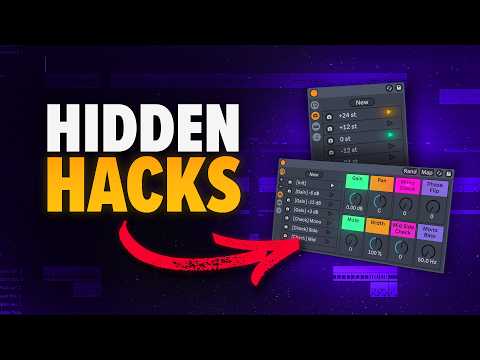
- Octave Shifter Rack SetupPurposeA simple rack device that allows quick shifting between octaves on MIDI tracks without complex configurations.Implementation Methods• Use the basic Pitch MIDI effect and press Shift + Down Arrow to switch between octaves • Create a custom rack by grouping the Pitch MIDI effect with macro variationsSetup Steps• Group the Pitch MIDI effect • Highlight macros and switch on macro variations • Map the pitch knob to macro one • Hide unnecessary macros • Create variations for different octavesResultQuick access to octave shifting with just button clicks, improving real-time performance flexibility.
- Utility Rack for Gain and Mixing ControlProblem AddressedWhen tracks are close to zero dB and using analog emulation plugins like distressor, signals can peak excessively and lose plugin character.Solution DesignA utility rack that provides quick input gain control, allowing safe signal management before compression without complex gain matching.Key Features• Drive signal down before compression • Pan left to right • Mute signal quickly • Check mono, mid, and side image informationValueAvailable as an update to the Ultimate Utility package; helps prevent clipping and gain-matching issues with analog emulation plugins.
- Setting Default MIDI Track ConfigurationPurposeEstablish a customized MIDI track template with preferred devices and settings for consistent workflow every time a new track is created.ProcessOnce devices are configured on the MIDI track, navigate to the track menu and click 'Save as default MIDI Track'.BenefitAll new MIDI tracks created with Command+Shift+T automatically include the configured devices and settings.ImpactSignificantly speeds up production by eliminating repetitive setup steps and ensuring consistency across projects.
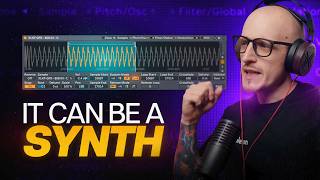
- Drum Sampler Optimization in Drum RackIssue with DefaultWhen dragging samples into drum rack, the system defaults to Simpler, which is less convenient than the newer Drum Sampler.Two Solutions• Right-click on the top bar and manually switch Simpler to Drum Sampler • Set Drum Sampler as the default for drum rack in the user libraryRecommended SetupNavigate to User Library > Defaults and drag Drum Sampler into drum rack, making it the default sampler for all future samples.OutcomeAll samples automatically open in Drum Sampler when dragged into drum rack, streamlining the workflow.
- Browser Organization and Tagging SystemChallengeThe improved browser's search function can return irrelevant results; manual scrolling through sample library is time-consuming.Organization Solution• Create custom groups in the browser by going to Edit and clicking 'Add Group' • Name groups with custom tags (e.g., 'snares') • Add relevant samples to groups by tagging them with hashtagsSearch ImplementationUse Command+F to search for tags with hashtag prefix (e.g., #snares) to quickly access custom-organized groups.Customization FeaturesChange group names, reorder samples, and manage custom categories directly in the browser for fast, intuitive access during production.
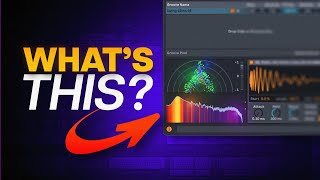
- Plugin Window Persistence for AnalysisDefault BehaviorAnalyzer plugins like TDR Prism automatically close when switching between tracks, disrupting workflow analysis.SolutionNavigate to Live Settings > Plugins Tab and disable 'Autohide plugin windows' to keep plugin windows open across all tracks.Practical ApplicationUse an oscilloscope analyzer to monitor kick and bass relationship while editing tracks without needing multiple screens or expensive hardware.Workflow AdvantageKeep analyzer visible while making real-time adjustments to different tracks, enabling instant visual feedback for mixing decisions.