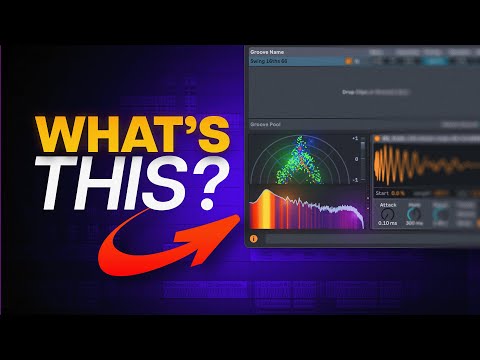
EVERYONE Been Asking for It - Ableton + Minimeters Setup
Both for you guys since I love sharing some tips, but also for me to have a proper tutorial to share in one link.
4 chapitres
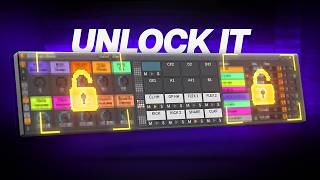
- Introduction to MinimetersProblem OverviewThe video addresses the most frequently asked question about the creator's setup and workflow. Most users still have default Ableton Live settings without proper monitoring tools.Solution PresentedMinimeters is an app that can significantly improve your Live setup by providing useful monitoring and analysis tools directly in Ableton.What's IncludedMinimeters offers much more than basic functionality, with multiple detachable modules that can be customized and arranged within your Live workspace.PurposeThis tutorial provides a comprehensive guide to replace the default info box with useful Minimeters modules for a smoother workflow.
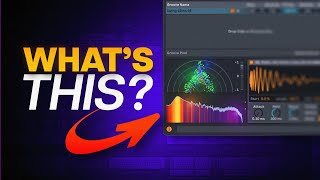
- Setting Up the Spectrum AnalyzerDetaching ModulesEvery module inside Minimeters can be detached from the main window to be placed anywhere in your Ableton Live interface.Adding Spectrum• Open Minimeters settings and click the detach option • A pop-up window will appear that can be dragged to the info box area • The spectrum analyzer module provides visual frequency analysis of your audioResizing & Customization• Click the resize box to enable corner dragging for custom sizing • Adjust the window to fit your preferred dimensions • Change the skin for better contrast and visibility in your themeFinal PlacementCarefully position the spectrum analyzer in the info box area, choosing a size and skin that matches your personal preference and Ableton theme.
- Choosing and Arranging ModulesModule Options• Spectrum analyzer for frequency analysis • Stereo field for stereo imaging visualization • Spectrogram for detailed frequency changes over time • Waveform and oscilloscope for different audio representationsSelection StrategyChoose modules based on what you find most useful for your workflow. The creator selected stereo field but emphasizes that the choice depends on individual needs and preferences.Preset SystemThe new version of Minimeters allows you to save presets for different use cases such as sound design, mixing, or creating visual presentations.Window Pinning• Pin all module windows to keep them visible while working in Live • Use the pin option in window settings or click the pin icon • Pinned windows stay on top regardless of where you click in Live
- Advanced Tips and CustomizationPlacement StrategyThe info box is suggested as the primary placement location since it maintains a consistent position in Live, even when adding clips or other elements to your session.Color Matching• The Minimeters skin pairs well with specific Ableton Live skin settings • Share and copy skin settings between Minimeters and Live for cohesion • Consider premium skin packs if you want extensive customization optionsAdditional FeaturesMinimeters now supports sampling or clipping audio directly from your session and dragging it to your project, with full window mode offering the best functionality for this feature.Final ThoughtsThis deep customization of Ableton Live with Minimeters appeals to detail-oriented producers who want maximum control over their workspace and visual feedback during production.