My FL Studio Template - The Best Way To Start A Project
I have a free FL studio project template for any and all of you to download and use
7 capitulos
- Giveaway Announcements and WinnersPrevious WinnersWinners from last week's 500,000 subscribers headphone giveaway have been announced and emailed. Results were also posted on Instagram with updated links on the previous video.New Giveaway• Image Line releasing FL Studio 20.7 with free lifetime updates • Three prizes available: FL Studio Producer Edition or $200 of Image Line virtual cash • Entry steps are listed in the video description • No data collection or mailing list usageFree TemplateA new FL Studio project template is available for everyone to download, simplified and streamlined compared to previous versions with custom drum samples.Video OverviewThe video will show how to download the files, load the template, and use it effectively for music production.
- Downloading and Installing the TemplateDownload ProcessDownload the file from the link in the description. If the link appears broken due to high volume of downloads, leave a comment and it will be fixed. The file is called 'in the mix template'.File Extraction• Extract all files from the downloaded zip • View the FLP file named 'in the mix template' • Locate the drum samples folderInstallation LocationNavigate to: This PC > Documents > Image Line > FL Studio > Projects > Templates. Copy or cut the entire unzipped 'in the mix template' folder and paste it in this location.Template AccessOpen FL Studio, go to File > New from Template, and select 'in the mix template' from the list.
- Setting Up Your ProjectInitial Setup• A dialog box will remind you to change song info and set a project data folder • Save the project immediately using File > Save As • Give the project a name and place it in its own folderProject InformationOpen Project Info by pressing F11 or going to Options > Project Info. Change the title to your song name and add your artist name so exports display correct metadata.Data Folder SetupSet a custom data folder for the project so all samples, sounds, and recordings are saved in one organized location instead of scattered in general user folders.Configuration CompleteOnce song info and data folder are set, your project is ready for production with proper organization and file management.
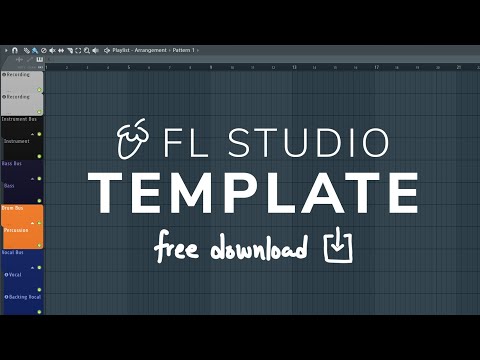
- Template Structure and OrganizationPlaylist Layout• Stripped down playlist with essential tracks: Instruments, Bass, Drums, Vocals • Two recording tracks at the top • Simplified from previous versions that were too largeDrum Samples• 8 custom drum samples pre-loaded in the channel rack • Includes trap and lo-fi kicks and snares • Versatile samples that sound good from the start for quick beat buildingMixer RoutingAll drums are automatically routed to individual channels, which are then routed to buses for drums, instruments, and vocals. This provides better control over the mix.Pre-loaded Effects• EQs, delays, and reverbs on specific channels • Notebook on each channel explaining what's there and referencing helpful videos • Vocal channel includes frequency guidance for EQ adjustments
- Vocal Channel and EffectsChannel Design• Simple setup with one track for main vocals • One track for backing vocals • Both sent to vocal reverbs and delaysEffect ControlAdd more effect by pushing up the fader on reverb and delay channels. Adjust reverb settings directly on the vocal reverb channel to achieve desired sound.Feedback IntegrationTemplate was refined based on feedback that the previous version had too much specific content. The vocal channel is now streamlined with only essential elements.Ease of UseThe simplified approach makes it easy for users to understand and modify effects without being overwhelmed by unnecessary complexity.
- Recording Setup and Additional FeaturesMetronome SetupMetronome is set to track one. Verify in Options > Audio Settings that 'Preview Mixer Track' is set to 1 for proper metronome output.Recording Tracks• Two pre-configured channels for recording • Both loaded with Edison plugin, the recommended way to record in FL Studio • Notebook provides video reference for learning Edison pluginFlexibility PhilosophyTemplate starts simple to give maximum direction flexibility. It doesn't lock you into a specific production style or type, allowing you to expand as needed.Plugin AccessPress F8 to open the plugin browser. Access synths and other instruments to drag into the instrument track or channel rack.
- Expanding Your ProjectAdding Tracks• Right-click in the playlist area and press I to insert new tracks • Ensure 'Typing Keyboard to Note' is turned off in settings • Color new tracks by clicking auto color groupTrack OrganizationQuickly color and name groups of tracks appropriately. The template grows with your project as you add more tracks and complexity.Mixer Track Management• Use Shift + scroll wheel on mouse to pull tracks in mixer to desired positions • Alternatively, select a track and press Alt + left/right arrow keys to move it • Add unused mixer tracks as neededSupport ResourcesAsk questions in comments or join the Discord community. Multiple links are provided in the video description to access additional help and tutorials.