Gross Beat Tutorial - Everything You Need To Know - FL Studio 20
9 chapitres
- Introduction to Gross BeatWhat is Gross BeatGross Beat is a time and volume manipulation plugin developed by FL Studio that runs inside any DAW and can be loaded on mixer effects slots to affect audio in real time.How It Works• Uses different envelopes that can be edited to manipulate audio • Works with both MIDI from instruments and WAV files on the playlist • Has volume-based effects and time-based effects sectionsVolume EffectsWhen you run a signal through the plugin with a shaped volume envelope, the output sound will be modified according to that envelope shape.Time EffectsRunning a signal through with a selected time-based envelope creates creative time manipulation effects with almost limitless possibilities.
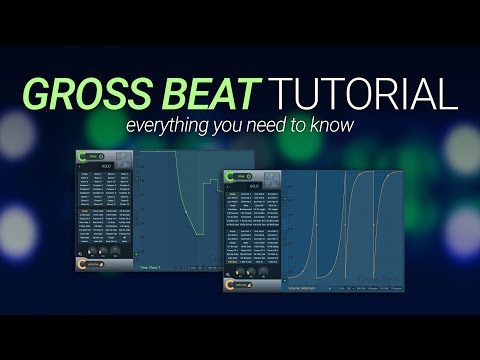
- Loading and Basic InterfaceSetup ProcessLoad Gross Beat on an empty effects slot in your mixer. A visualizer plugin like the one from Smart Electronics can help you see the audio changes.Main Sections• Right side: envelope section with time-based controls on top and volume-based controls on bottom • The interface looks complicated but breaks down into manageable parts • Empty slot shows no envelope activity initiallyVolume Envelope BasicsWhen the graph line is at the top, full volume passes through. When at the bottom, no volume gets through. Edit points by left-clicking and dragging.Pattern SelectionClick through different preset patterns to find sounds that work for you. Patterns include beat gates, transy patterns, and side-chaining effects.
- Volume Controls and AdjustmentsWet/Dry BlendingThe Style dial controls how much signal passes through unaffected. Use the time dial at the top as your primary wet/dry blending dial instead of the mixer fader to avoid phasing issues.Click Reduction• Adjust attack to prevent clicking at the start when volume jumps • Adjust release to prevent clicking at the end of the effect • Tension controls the curve shape and how the volume risesSnap SettingsAccess snap options including 1/8, quarters, thirds, and sixteenths divisions. Hold Alt to snap off the grid for free placement.Editing TechniquesAdd points by right-clicking. Use Control to move vertically only, Shift to move horizontally only. Curve types work like FL Studio automation clips and can be changed per point.
- Advanced Point EditingManual Pattern CreationStart with the empty pattern and manually manipulate points to create unique volume shapes. You can add many points to develop creative patterns.Curve Type Options• Change individual points to different curve types like double curves or stairs • Double curves allow smooth transitions between points • Stairs create step-like patterns when you drag in the middleStep Editing ModeEnable step editing to draw patterns based on your snap settings. When snap is off, you can draw any shapes you want for creative stepped patterns.Slide and Freeze Features• Slide remaining points: selecting a point moves all points to the right along with it • Freeze editing: locks the graph to prevent accidental editing until toggled off again
- Pattern Automation and SwitchingAutomating Pattern ChangesAll patterns are controlled by MIDI switches, allowing you to automate between different patterns using a keyboard or automation clip on the playlist.Automation Workflow• Right-click a pattern and copy its value • Create an automation clip below the track • Paste values at different points to switch patterns dynamicallySwitch Behavior Options• Hold on key: keeps the pattern while holding the key, returns when released • Jump back to first slot: returns to empty slot when pattern finishes • Hold: force the effect to stay on one patternTiming Sync ControlsUse trigger sync and position sync to align pattern switches with song beats. Options include quarter beat, one beat, four beat, and bar-length triggers.
- Time-Based Effects OverviewWhat Time Effects DoTime-based effects include note repeats, pitch changes, scratching sounds, and tape stop effects. They manipulate how audio plays back over time rather than just volume.Graph Interpretation• Straight forward line equals 100% playback speed • Diagonal line creates a safety stop effect on the audio • Going below the line reverses the audio in timeCreative ManipulationDrop points down to jump backwards in the audio pattern to hit previously played notes. The effect becomes complex but experimentation is key to using it creatively.Getting StartedSelect a preset time effect and start manipulating points. Most producers don't get too technical—they try things until it sounds good and fits their music.
- Time Effect Features and PresetsManual ScratchingClick and drag the clock icon to manually scratch the audio yourself in real time while the pattern plays.Hold Button FunctionThe hold button isolates one section of audio and loops it. Release to move to the next section. This creates looping effects on specific parts of your sample.Preset Categories• Pitch shifter: changes the pitch of the melody, can shift down a full octave or partial intervals • Turntable: creates scratching patterns • Stutter: creates stuttering and slowdown effectsBlend ControlUse the wet/dry dial on time effects the same way as volume effects to blend the amount of the effect into your signal. All snap features work identically on time effects.
- Practical Applications and TipsCommon Use Cases• Bass side-chaining: especially effective with repeating kick patterns • Riser stuttering: add movement and rhythm to risers by stuttering them going in • Melody effects: create pitch shifts and scratching on melodic elementsProduction WorkflowMany trap and hip-hop producers start by loading a sample into Gross Beat, which inspires creativity for beat making and the rest of the song composition.Complexity ApproachDon't be intimidated by the plugin's complexity. You don't need deep technical knowledge—just load it up, try different things, and experiment creatively.Additional Settings• Click reduction options: low, high, or off for time-based effects • Smoothing, attack, and DC offset settings are available but not essential for beginners • Advanced features can be explored once comfortable with basics
- Summary and Final RecommendationsKey TakeawayGross Beat is a powerful plugin created by Image Line that requires creativity and experimentation rather than deep technical understanding to use effectively.Testing Approach• Try the plugin on your mixes, basses, melodies, and other elements • Avoid putting it on the whole master—use it selectively on individual tracks • Get creative with it and enjoy the processDevelopment TeamThe plugin was created by Gol and Reflex, combining their expertise in time and volume manipulation effects.Next StepsStart experimenting with Gross Beat on your productions. Use both volume and time effects to add movement, rhythm, and creative effects to your tracks.