Fast FL Studio Workflow Hacks
5 chapters
- Loading and Linking Instruments in FL Studio 20.1Old WorkflowPreviously required manually loading instruments in the channel rack, sending to mixer, naming, coloring, and adding tracks on the playlist with repetitive manual updates needed each time.New Method• Press F8 to open the plugin picker with all available plugins • Drag and drop plugins directly onto the playlist or mixer • Plugin automatically opens, gets named, and creates a pattern on the playlist • Mixer automatically routes, names, and colors the instrumentDynamic UpdatesChanges made in any location (playlist, mixer, or channel rack) automatically update everywhere - renaming in one place renames all instances, same for colors.Optional LinkingRight-click on track mode to unlink the dynamic connection if desired, converting it to a standard track that doesn't auto-update across locations.
- Direct Plugin Loading and AutomationPlaylist LoadingDouble-click any track on the playlist to automatically open its assigned plugin instead of navigating through F6 and the channel rack.Time SavingsEliminates the previous workflow of pressing F6, scrolling through the channel rack, finding the instrument, and manually loading it up.Automation CreationRight-click on plugin parameters and select create automation clip to instantly generate automation tracks beneath the instrument track.Auto-ColoringUse right-click > auto name clips to automatically color automation clips, though this feature sometimes requires manual activation.
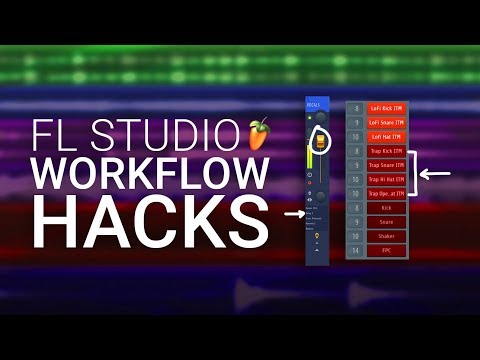
- Mixer Views and Effects Chain ManagementView Options• Dropdown menu to position track inspector on the left side where effects are located • Multiple view modes available: extra large, compact, or wide • Drag mixer from the top to expand and view all effects chains simultaneouslyMulti-Channel MixingSelect multiple effects across different channels from a single dropdown menu without having to click between individual channels or navigate to the side.Efficiency BoostClose multiple plugins at once by reselecting them on the mixer or using the close button, eliminating repetitive clicking and navigation.At-a-Glance StatusSee which effects are on and off in the shortened list, which speeds up workflow by avoiding confusion about active effects across the mixing session.
- Using Templates for Production SetupTemplate PurposeTemplates are not about reusing the same sounds, but having a pre-configured production or mixing setup that's ready to use for maximum creativity.What's Included• Pre-loaded drums and synths • Instruments already named and colored • Routing set up to the mixer • Consistent color scheme applied throughoutWorkflow BenefitsEliminates time spent on naming, coloring, and routing so you can focus entirely on the music and creative aspects of production.AvailabilityFree downloadable template available in the video description with a link to a detailed video explaining the template setup and configuration.
- Channel Rack Organization with GroupsProblem OverviewLarge channel racks with hundreds of plugins and samples become overwhelming to navigate, requiring excessive scrolling to find necessary instruments.Creating Groups• Select instruments by highlighting them • Hold Shift to select multiple instruments • Press Alt+G to open the filter group name box • Type the group name and press Enter to create the groupOrganization ExamplesCreate custom groups such as drums, sound effects, instruments, or synths to keep related items organized and easily accessible.Practical BenefitsGroups help manage large projects with printed audio, tested samples, and multiple snare variations by providing visual organization and reducing mental clutter without deleting unused items.