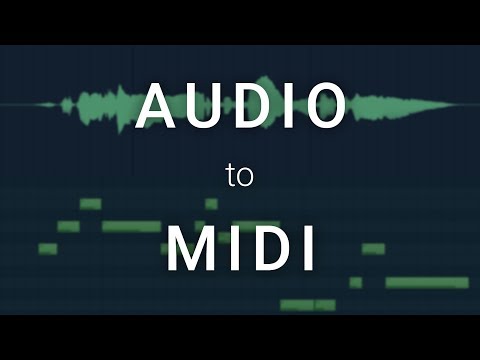
How To Convert Audio To MIDI in FL Studio
5 chapters
- Introduction and Setup RequirementsOverviewA straightforward technique for converting audio files into MIDI inside FL Studio, commonly requested after vocal tuning tutorials.Required Setup• Audio loop (vocal or guitar example used) • Separate pattern created for MIDI notes • Synthesizer or Keys plugin ready in the channel rackUse CasesWorks best for converting melodies from vocal loops and guitar loops into playable MIDI.LimitationsDoes not work well for complex audio containing chords, bass lines, and melodies simultaneously.
- Converting Audio to MIDI Using EdisonAccess Method• Click the waveform icon at top left of audio sample and select edit sample • Or right-click audio in picker panel and select edit sampleEdison ToolFL Studio's inbuilt audio recorder and editor that opens the audio for MIDI conversion.Conversion Process• Select pattern for MIDI output (e.g., vocal MIDI) • Select synthesizer in channel rack • Click spanner icon in Edison, go to analysis, select convert to score and dump the piano roll • Alternative: right-click waveform, select tools, convert to score and dump the piano rollOutputMIDI notes are automatically added to the selected pattern and can be played back with the synthesizer.
- Editing and Refining Converted MIDICommon IssuesThe conversion may contain small mistakes or incorrect notes that need manual correction.Refinement Techniques• Open piano roll and select all MIDI notes • Pitch notes up an octave if needed • Drag pattern over audio clip and zoom in to see fine detail alignment between words and MIDI • Manually correct individual notes that don't match the original audioEar Training AidHumming a melody or playing it on guitar can help figure out correct notes, especially useful if not proficient at recognizing melodies by ear.Workflow BenefitUsing this technique as a starting point keeps the project moving quickly without needing perfect pitch recognition.
- Demonstration on Guitar and Alternative MethodsGuitar ExampleSame conversion process applied to a guitar audio loop, showing the technique works consistently across different audio types.Troubleshooting Notes• The conversion interpreted an open guitar string incorrectly, requiring zoom-in and manual correction • Sometimes artifacts need cleanup by zooming back in and fixing individual notesNew Tone Plugin Method• Open loop in new tone or pitch corrector • Go to Edit tool and select copy to MIDI clipboard or send to piano roll • Advantage: allows correcting pitch problems before sending to piano roll, unlike EdisonBest PracticeEdison is usually the best method to use since not everyone has the new tone plugin, though new tone offers more control over pitch corrections.
- Limitations and ConclusionComplex Audio ChallengeConverting audio loops with chords, melodies, and bass lines together does not produce good results.Why It FailsThe conversion algorithm cannot accurately separate and interpret multiple simultaneous musical elements in complex arrangements.Sweet SpotThe technique works really well for single melodies from vocals or instruments but not for polyphonic or harmonic content.SummaryA simple and straightforward technique that requires minimal setup and provides a quick starting point for melody-based MIDI conversion with some manual refinement.